Get recommendations in the Advisor
The Advisor compares candidate servers with a baseline for a workload and utilization level. Open the Advisor to begin.
To see recommendations before you enter your own server, select Example in the page header. It fills in a sample baseline server, workload, and utilization. Introduction, next to it, opens a video about the Advisor.
Set up an assessment
The following screenshot shows the input panel with a baseline server, a workload, and a utilization filled in:
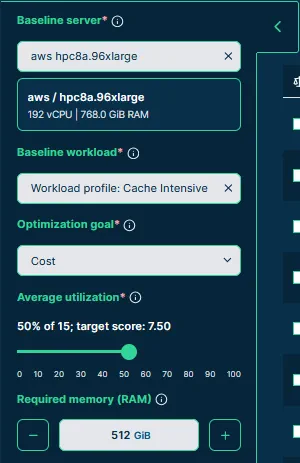
- Choose a baseline server. The workload control is unavailable until you choose a baseline.
- Choose a Baseline workload. The list shows only workloads measured on your baseline server, such as a web or LLMLLM: Large Language ModelA neural network, typically with billions of parameters, trained on large amounts of text to predict the next token. It can generate, summarize and translate text, answer questions and write code.WikipediaGlossary inference profile.
- Set Average utilization: how busy your baseline server is on average, such as its average CPUCPU: Central Processing UnitThe general-purpose processor of a computer, which runs the operating system and programs. A CPU has one or more physical cores, and with SMT each core runs two or more hardware threads.WikipediaGlossary or GPUGPU: Graphics Processing UnitA processor with thousands of simple cores that run the same operation on many data elements in parallel. It was built to render graphics, and is now also used for general-purpose parallel work such as machine learning training and inference, scientific simulation, and video encoding. Cloud providers rent GPUs attached to virtual machines, with their own dedicated GPU memory.WikipediaGlossary usage. The Advisor uses it to see how far it can scale down the candidates' performance to save costs. Set it with the slider, from 0 to 100% in steps of 10%. It starts as "Not set", and the Advisor shows no results until you set it. To use 0%, move the slider and then back to 0.
- Choose an optimization goal: Performance, Cost, or Cost-efficiency. Cost is the default.
- Check Required memory (RAMRAM: Random-Access MemoryThe main memory of a computer, which holds the running programs and their data. It is much faster than disk storage, and its content is lost when the power is off.WikipediaGlossary). The Advisor fills it in from the baseline's memory and your utilization; raise it to cover your peak memory use. Required GPU memory (VRAM) starts at 0, which means no GPU requirement.
- Optionally, enter Required storage size and Required storage type, and Monthly inbound traffic and Monthly outbound trafficegressThe network traffic leaving a cloud vendor's network, e.g. to the internet. Vendors usually charge for it per GB beyond an included amount, while incoming (ingress) traffic is usually free, so it can make up a large part of the costs of a service that sends a lot of data.Glossary in GB. The Advisor adds the cost of extra storage and of this traffic to each server's price, so egress costs count in the comparison.
- Optionally, under Limit search for matching:, keep results to the baseline's CPU allocation or CPU architecture, to one Price allocation type, or to one Region where the baseline is sold. The Vendor and Region filter groups limit results further.
- Review the recommendations. The Advisor reports how many servers matched, or shows "No matches yet" if none did; then loosen your inputs or filters. The table shows how each server differs from the baseline as a percentage, for example "+12%" on price.
The following screenshot shows the Limit search for matching: options from step 7:

For example, with aws / m5.large as the baseline, an LLM inference
workload, and 50% average utilization, the Advisor sets required memory to
4 GiB.
Compare a recommendation with the baseline
- Select Compare baseline above the recommendations to add the baseline to your comparison. The button changes to Remove baseline.
- Select the checkboxes of one or more recommendations.
- Select Compare (N) in the bar at the bottom of the page.
The comparison shows the baseline and the selected servers side by side. For more detail on the comparison view, see Compare servers and databases.
Price allocation and currency affect the price information shown. See Understand prices. The Benchmarks reference describes benchmark workloads used in the results.