Compare servers and databases
You can compare servers or managed databases side by side. Start from the Servers or Databases listing, or from a server or database detail page. For servers, you can also start from the Advisor's recommendations.
Start a comparison
From a listing
- Open the Servers or Databases listing.
- Select the checkboxes for at least two servers or databases.
- Select Compare (N), for example Compare (3), in the bar that appears at the bottom of the page, next to Clear.
Guests can compare up to four servers, and separately up to four databases, at a time. The listing disables further selection when the guest limit is reached and shows a registration prompt.
From a detail page
Open a server or database from its listing and select Compare. The control changes to Don't Compare when that item is in the current selection. Add others the same way or from the listing. Once two or more servers or databases are selected, the compare icon in the site header shows their number. Select it to reorder or remove items or set a baseline, then select Compare servers or Compare databases.
From the Advisor
In the Advisor, select Compare baseline, select the checkboxes of one or more recommendations, and select Compare (N). The comparison shows the baseline next to the selected servers. See Compare a recommendation with the baseline.
Read a comparison
The comparison page places the selected servers side by side: property sections such as CPUCPU: Central Processing UnitThe general-purpose processor of a computer, which runs the operating system and programs. A CPU has one or more physical cores, and with SMT each core runs two or more hardware threads.WikipediaGlossary, Memory, and Storage, then Workload Profiles, benchmark sections, and Further Benchmarks. Use the following cues to read it:
- The best value in each row is highlighted in bold green.
- Badges on the server columns mark the lowest price (💰), the best value for price (🥇), and the top performance (💪).
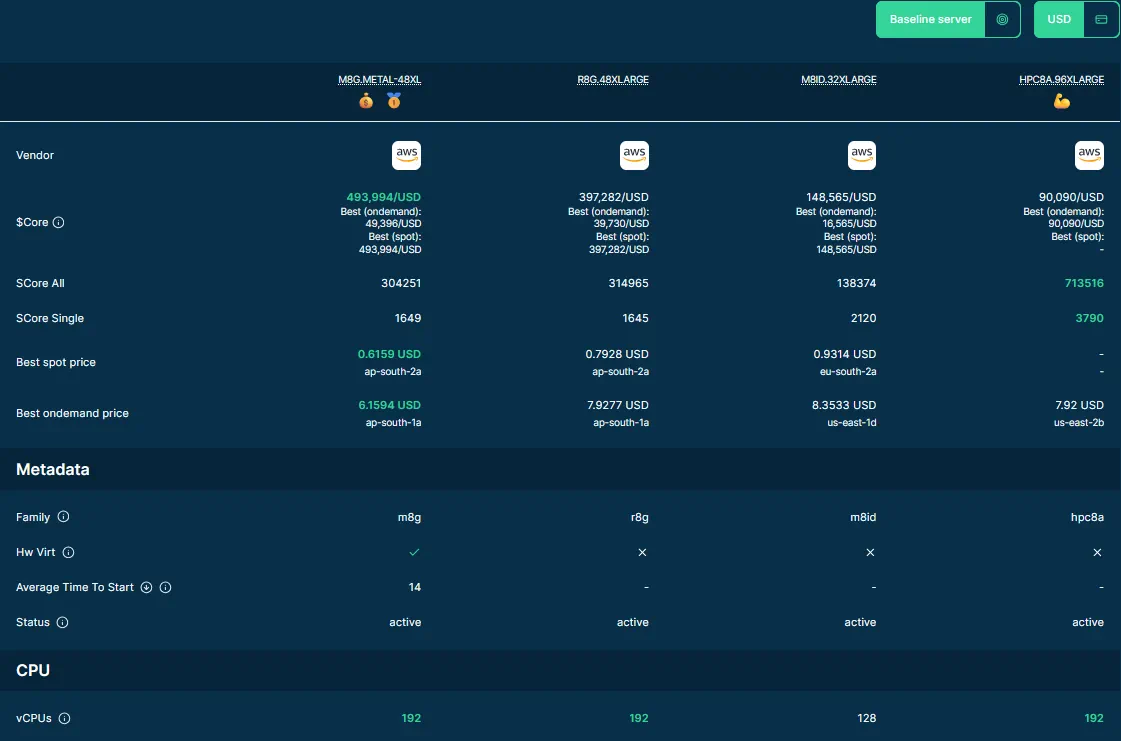
The page also has a currency control and a Baseline server selector. Choose a baseline to see how the other servers differ from it: its column is underlined in green, and rows such as prices and CPU speed show each server's difference as a percentage, green where it beats the baseline and red where it falls short. The baseline is kept in the page's URLURL: Uniform Resource LocatorThe address of a resource on the web or a network, such as https://sparecores.com/, made of a scheme, a host, and a path.Glossary, so a shared link keeps it. Choose No baseline to remove it.
A database comparison works the same way, with a Baseline database selector and the same green highlighting. It shows specification and price rows, a benchmark chart when results exist, and More Details; it has no price or performance badges.
For what each benchmark workload measures, see the Benchmarks reference.
The curated server comparisons and curated database comparisons provide preselected groups to explore.
For price display, see Understand prices. For guest limits and bookmarks, see Accounts and bookmarks.